mirror of
https://github.com/silenceper/wechat.git
synced 2026-02-06 21:52:27 +08:00

186 lines
7.2 KiB
Markdown
186 lines
7.2 KiB
Markdown
# 起步:项目搭建
|
||
|
||
<a name="8MeIi"></a>
|
||
## 目标
|
||
通过完成一个留言板应用来熟悉云开发中go sdk中的使用,主要分为以下三个内容
|
||
|
||
1. 如何利用云开发中的[数据库](https://developers.weixin.qq.com/minigame/dev/wxcloud/reference-http-api/database/#%E6%95%B0%E6%8D%AE%E5%BA%93)进行留言内容的保存
|
||
1. 使用[云函数](https://developers.weixin.qq.com/minigame/dev/wxcloud/reference-http-api/functions/)进行文本内容的过滤
|
||
1. 使用[云开发存储](https://developers.weixin.qq.com/minigame/dev/wxcloud/reference-http-api/storage/)能力进行附件的保存
|
||
|
||
<a name="Nq75E"></a>
|
||
## 环境介绍
|
||
<a name="Kxmk0"></a>
|
||
### Golang 1.13
|
||
项目中使用Golang 1.13版本进行开发,并且使用go module 进行依赖管理
|
||
<a name="H0cFe"></a>
|
||
### 编辑器:Goland
|
||
代码编辑工具
|
||
<a name="PsxLG"></a>
|
||
### 热编译工具:Gowatch
|
||
Go 程序热编译工具,提升开发效率<br />官网地址: [https://github.com/silenceper/gowatch](https://github.com/silenceper/gowatch)<br />**快速安装:**
|
||
```basic
|
||
go get -u github.com/silenceper/gowatch
|
||
```
|
||
|
||
<a name="tNyRl"></a>
|
||
### web开发框架-Gin
|
||
一个web开发框架,方便快速构建一个web应用<br />官网: [https://github.com/gin-gonic/gin](https://github.com/gin-gonic/gin)
|
||
<a name="MzLXD"></a>
|
||
### Wechat SDK For Go
|
||
使用Golang对微信公众号,小程序,云开发等API进行封装,使得Go项目中可以方便上手<br />官网: [https://github.com/silenceper/wechat/](https://github.com/silenceper/wechat/) <br />文档:[https://pkg.go.dev/github.com/silenceper/wechat/tcb?tab=doc](https://pkg.go.dev/github.com/silenceper/wechat/tcb?tab=doc)
|
||
<a name="pNPPj"></a>
|
||
### 云开发
|
||
集成数据库,存储,云函数等功能的平台<br />使用文档:[https://developers.weixin.qq.com/miniprogram/dev/wxcloud/reference-http-api/](https://developers.weixin.qq.com/miniprogram/dev/wxcloud/reference-http-api/)<br />在开始开发前,请注册一个小程序获取 `app_id` , `app_secret`参数,并开启云开发功能。
|
||
|
||
<a name="qyAfI"></a>
|
||
## 初始化项目
|
||
> 本项目中使用go module进行依赖管理
|
||
|
||
在工作目录创建一个项目`guestbook`,并使用`go mod init github.com/go-demo/guestbook`进行初始化,后面接的是`import path`。
|
||
|
||
```bash
|
||
mkdir guestbook
|
||
cd guestbook
|
||
go mod init github.com/go-demo/guestbook
|
||
```
|
||
|
||
<a name="JvK7M"></a>
|
||
### 编写main.go文件
|
||
使用goland编辑器中打开这个项目,并创建一个`main.go`文件,内容如下:
|
||
|
||
```go
|
||
package main
|
||
|
||
import "github.com/gin-gonic/gin"
|
||
|
||
func main() {
|
||
r := gin.Default()
|
||
r.GET("/ping", func(c *gin.Context) {
|
||
c.JSON(200, gin.H{
|
||
"message": "pong",
|
||
})
|
||
})
|
||
r.Run() // listen and serve on 0.0.0.0:8080
|
||
}
|
||
```
|
||
|
||
<a name="q2Vtn"></a>
|
||
### 编译并运行
|
||
我们可以在Goland编辑器中Terminal面板中进入项目目录,使用`gowatch`命令对该项目进行热编译,看到图片中的log输出表示已经启动成功:
|
||
> gowatch会监听项目中文件的变化,当进行变化后,对项目进行build 和run,这样我们就可以在一边修改代码一边对项目进行编译及时发现错误,是不是效率提升了呢 :>
|
||
|
||
|
||
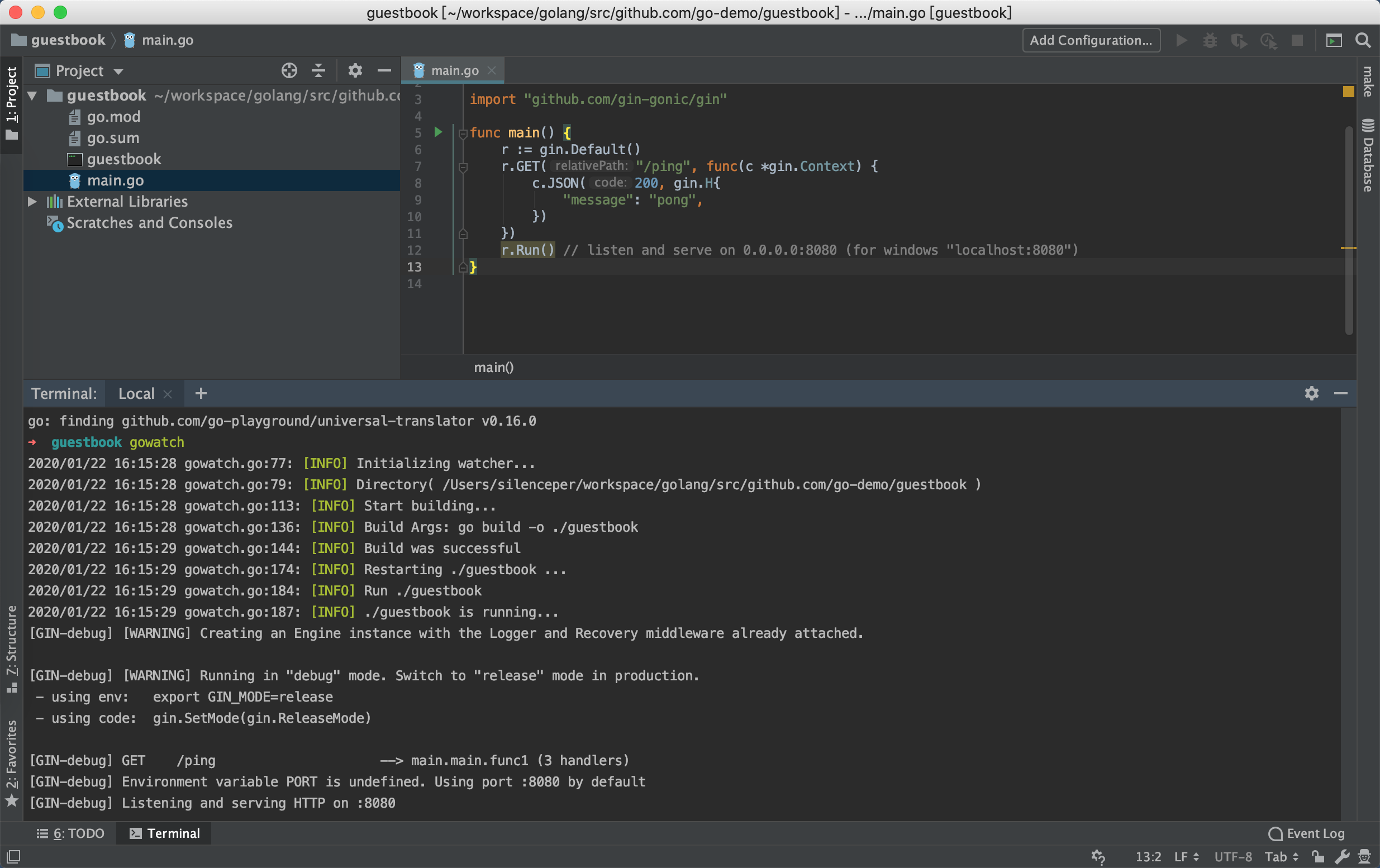<br />(初次build会通过go module自动下载依赖,请注意开启go module功能)
|
||
|
||
我们通过访问`127.0.0.1:8080/ping`就可以看到页面上输出`{"message":"pong"}`说明服务启动成功。
|
||
|
||
<a name="yXtGW"></a>
|
||
## 渲染留言页面
|
||
我们可以先规划我们的UI是怎么样子?
|
||
|
||
包含两部分:
|
||
|
||
- 留言框:包含留言内容,附件上传,用户名,提交按钮
|
||
- 内容展示:展示留言内容,附件以及留言者和留言日期
|
||
|
||
界面展示如下:<br />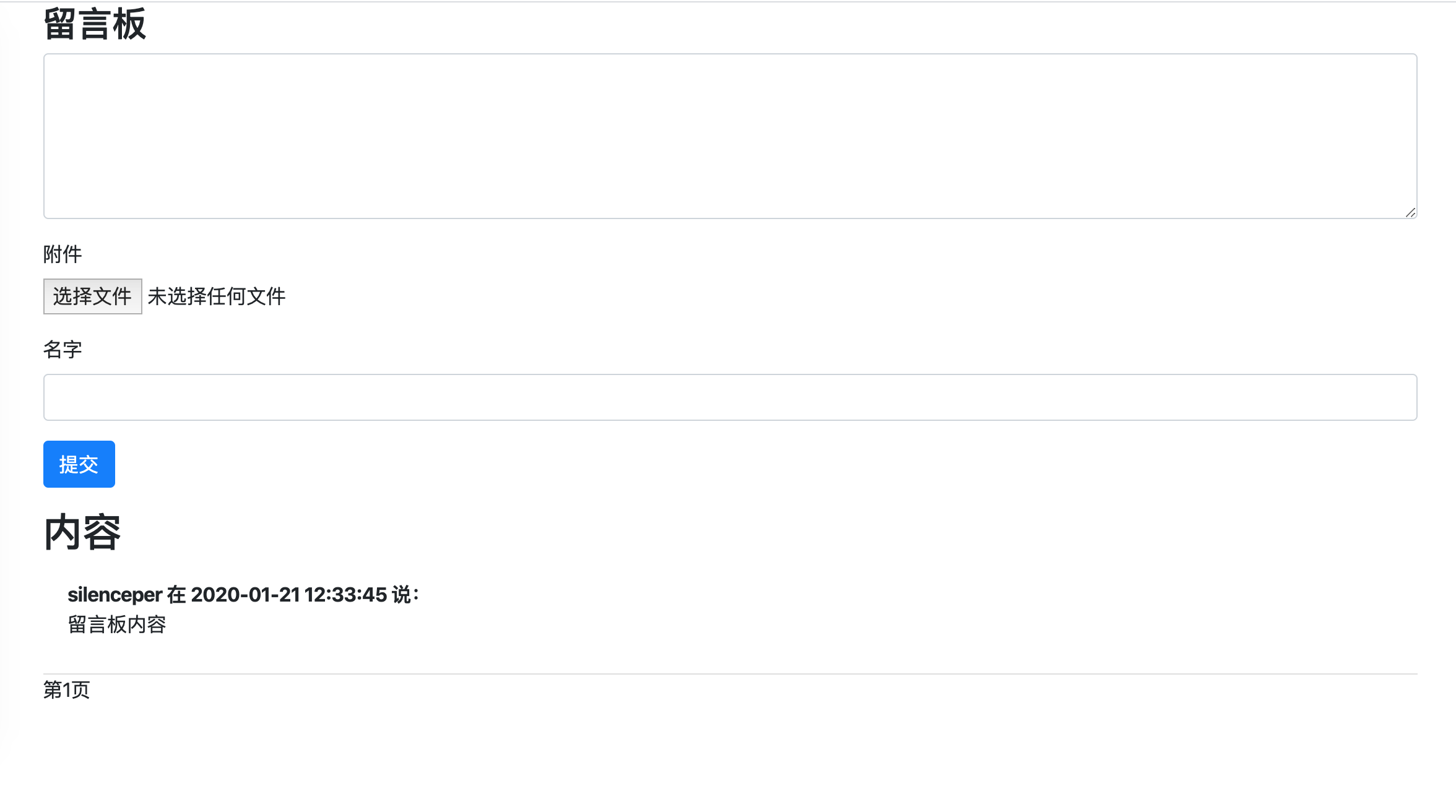
|
||
<a name="2vKHj"></a>
|
||
### 创建模板文件
|
||
对应的html代码如下,我们保存在项目中的template/index.html文件中:
|
||
|
||
```html
|
||
<!doctype html>
|
||
<html>
|
||
<head>
|
||
<title>留言板</title>
|
||
<link rel="stylesheet" href="https://cdn.jsdelivr.net/npm/bootstrap@4.4.1/dist/css/bootstrap.min.css"
|
||
integrity="sha384-Vkoo8x4CGsO3+Hhxv8T/Q5PaXtkKtu6ug5TOeNV6gBiFeWPGFN9MuhOf23Q9Ifjh" crossorigin="anonymous">
|
||
</head>
|
||
<body class="container-md">
|
||
<h3>留言板</h3>
|
||
<div>
|
||
<form action="/feedback" method="post" enctype="multipart/form-data">
|
||
<div class="form-group">
|
||
<textarea class="form-control" name="content" id="content" cols="50" rows="5"></textarea>
|
||
</div>
|
||
<div class="form-group">
|
||
<label for="file">附件</label>
|
||
<input type="file" class="form-control-file" name="file" id="">
|
||
</div>
|
||
<div class="form-group">
|
||
<label for="username">名字</label>
|
||
<input type="text" name="username" class="form-control"></div>
|
||
<div class="form-group"><input type="submit" value="提交" class="btn btn-primary"></div>
|
||
</form>
|
||
<h2>内容</h2>
|
||
<div class="list-group list-group-flush">
|
||
<div class="list-group-item">
|
||
<div><span><b>silenceper 在 2020-01-21 12:33:45 说:</b></span></div>
|
||
<div><p>留言板内容</p></div>
|
||
</div>
|
||
</div>
|
||
<div>
|
||
<span>第1页</span>
|
||
</div>
|
||
</div>
|
||
</body>
|
||
</html>
|
||
```
|
||
|
||
这里引入了bootstrap样式文件,不需要自己写太多前端样式了,出来的UI也不会太难看。
|
||
|
||
<a name="MLcML"></a>
|
||
### 通过gin渲染模板
|
||
我们想要通过访问`127.0.0.1:8080`直接访问到这个留言页面,main.go中代码如下:
|
||
|
||
```go
|
||
package main
|
||
|
||
import (
|
||
"net/http"
|
||
|
||
"github.com/gin-gonic/gin"
|
||
)
|
||
|
||
func main() {
|
||
r := gin.Default()
|
||
|
||
//包含html模板
|
||
r.LoadHTMLGlob("./template/*")
|
||
//渲染留言页面,GET请求,通过根路径可以直接访问
|
||
//当路径匹配成功后,进入index访问进行处理
|
||
r.GET("/",index)
|
||
|
||
|
||
r.Run() // listen and serve on 0.0.0.0:8080
|
||
}
|
||
|
||
//渲染留言板首页
|
||
func index(c *gin.Context) {
|
||
//返回200,并渲染index.html页面
|
||
c.HTML(http.StatusOK,"index.html",gin.H{
|
||
"title":"留言板",
|
||
})
|
||
}
|
||
```
|
||
|
||
其中`r.LoadHTMLGlob("./template/*") `指定了html模板的位置,这样在使用进行`c.HTML`进行渲染的时候就知道到哪个位置进行查找了。
|
||
|
||
**c.HTML说明:**
|
||
|
||
- 第一个参数:http状态码
|
||
- 第二个参数:需要渲染的模板
|
||
- 第三个参数:需要传递的值(`gin.H`其实是一个`map[string]interface{}`的别名)
|
||
|
||
这里`c.HTML`渲染了`index.html`,并以`200`状态码输出,第三个参数`gin.H`,传入`key:value` ,就可以在`index.html`页面中使用go-template语法进行值的替换,语法格式:
|
||
|
||
`{{.title}}`
|
||
|
||
这里可以查阅gin文档:[如何进行html渲染](https://github.com/gin-gonic/gin#html-rendering)
|
||
|
||
<a name="XXc0s"></a>
|
||
## 代码地址
|
||
本文中所有代码都上传在 [https://github.com/go-demo/guestbook](https://github.com/go-demo/guestbook)
|
||
|